Chapter 1
Welcome to Plan2Live
What Plan2Live does, what you need, and how a build goes from a setlist to an Ableton Live set.
Plan2Live is a Mac app that builds your Ableton Live set for you. You give it the setlist and show it where your stems live. It lays the songs out in order, each with its own key, tempo and time signature, puts every stem on its track, and marks each song's sections. Then you open the set in Ableton Live and rehearse.
It's made for anyone who runs tracks in Ableton Live: bands and cover acts, artists and music directors, playback engineers and worship teams.
How a build works#
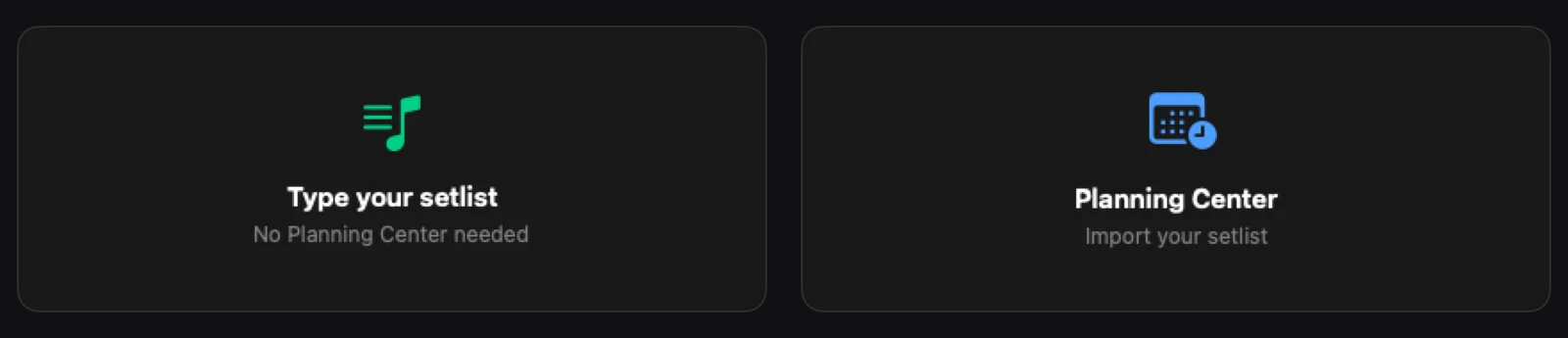
- Bring in the setlist. Type the songs in, or import a plan from Planning Center. See Typing your setlist and Importing from Planning Center.
- Point at your stems. Choose the folder (or drive) where your song folders live. Plan2Live finds each song's folder and puts each file on the right track. See Stems: folders and matching.
- Let it read your Guide. If a song has a Guide track with spoken cues like "verse" or "chorus", Plan2Live listens to it on your Mac and names the section markers after them. See Guide analysis and section markers.
- Check and generate. The Confirm + Edit screen shows every song and what Plan2Live found for it. When it all looks right, press GENERATE PROJECT. See Building the set.
- Open it in Live. Press Open in Ableton, give it a listen, and rehearse. See Opening the set in Ableton Live.
What you need#
- A Mac with macOS 14.6 or later. Apple Silicon and Intel Macs both work.
- Ableton Live 12 Standard or Suite is recommended. Live Intro and Lite allow too few tracks for the built-in template.
- Your stems, in one folder per song. Plan2Live doesn't sell or supply stems.
- A Plan2Live account. It's free, and your first 2 builds are free too.
- Planning Center is optional. Plenty of people just type their setlist.
What Plan2Live doesn't do#
- It runs on a Mac only.
- It builds in Arrangement View, not Session View.
- It doesn't play the set. You run it in Ableton Live, like a set you made yourself.
- The built-in template doesn't make a click. If you want a click, bring a click stem.
- It doesn't add timecode, show-control MIDI or lyrics.
New in version 2.8.4#
- Choosing a plan is quicker. When your free builds are used, Plus and Pro sit side by side with their prices, Yearly shown first, and each has a button that takes you straight to checkout. See When you run out of builds.
- Small free sets ask first. On Free, if a set has very little audio in it, the app asks before it uses one of your free builds. See A set with very little audio.
- Fewer update checks. The app checks for updates about once a day. See Updates find you.
- Sign-in says why. The sign-in screen tells you why there's an account: your free builds and your plan stay with your account, on every Mac you sign in on. See Your account.
New in version 2.8.3#
- Spanish everywhere. With the app set to Español, its screens, windows and messages are in Spanish, not only the main window. See Language / Idioma.
- Manage and cancel in the app. Manage Subscription and Cancel Subscription… in Settings open Stripe's billing page. See Manage or cancel.
- A clearer finished card on Free. It tells you how many free builds you have left, and what Plus gives you once they're used. See The finished card.
- News and an invite code on Create account. See Your account.
- Long Guides show their progress. Each waiting Guide says how many are ahead of it. See How it works.
- A welcome tour that ends. Finish or skip it once and it doesn't come back. See The guided tour.
About this manual#
This manual is written for Plan2Live 2.8.4 (build 69), the version you download today. Where a version works differently from the one before it, the text says so, for example "from version 2.8.4": if you haven't updated yet, see Updating Plan2Live. The pictures were taken in version 2.8.2, so a few words on them have changed since; where that matters, the text gives the new words. Words in bold or in CAPITALS are what you'll see on screen. Use the search box to find any word in any chapter, or read it all on paper with the print view or the PDF.
Something here doesn't match what you see in the app? Email feedback@plan2liveapp.com.