Chapter 3
Typing your setlist
Start a new project, add each song with its key, tempo and time signature, and put the songs in order.
Every set starts on the New Project screen. It has two cards:
- Type your setlist (No Planning Center needed): you add the songs yourself. This chapter.
- Planning Center (Import your setlist): Plan2Live fills the whole set from a plan, in one go. See Importing from Planning Center.
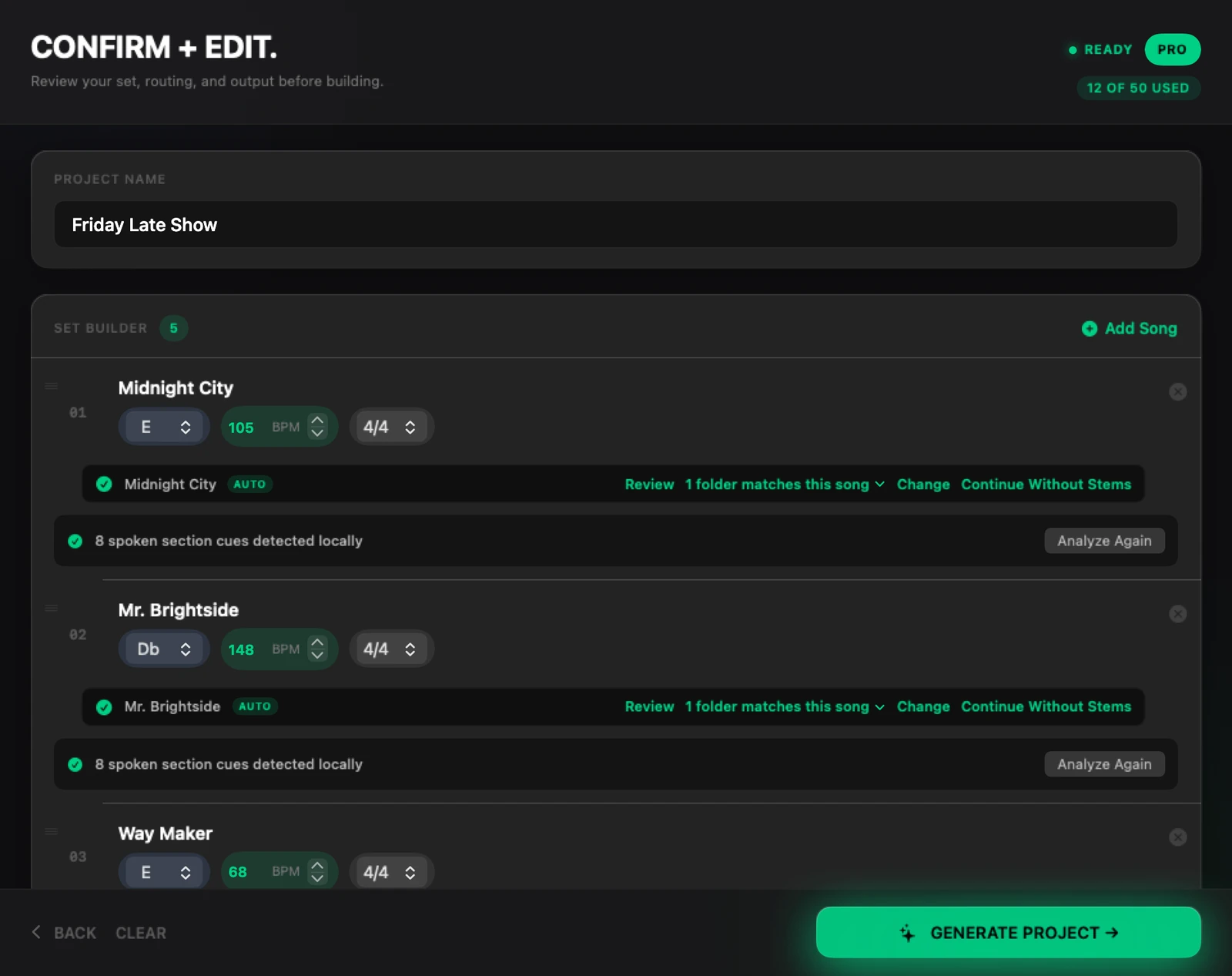
Both lead to the same CONFIRM + EDIT. screen, where you check everything and build.
Name the project#
At the top of Confirm + Edit, type a name in Project Name. The name is used for the project folder and the .als file, so a set called "Friday Late Show" is saved as Friday Late Show Project/Friday Late Show.als. Plan2Live won't build until the project has a name.
Add songs#
In the Set Builder card, press + Add Song. Each song needs four things:
| Field | What to enter |
|---|---|
| Song title | The song's name, spelled the way your stems folder spells it. |
| KEY | C, C#, Db, D, Eb, E, F, F#, Gb, G, Ab, A, Bb or B. |
| BPM | The tempo, from 40 to 240. Halves work too (for example 72.5). |
| TIME SIGNATURE | 4/4, 3/4 or 6/8. |
Press Save Song. It stays greyed out until the song has everything it needs. A set can hold up to 50 songs.
Change, reorder and remove songs#
- Change a song: click its title to open Edit Song, or change the key, BPM or time signature right on its row.
- Reorder: drag a song by its handle (≡) to where it belongs. The set is built in this order.
- Remove a song: press ⊗ on its row and confirm with Remove Song.
- Start over: press CLEAR at the bottom and confirm with Clear Set.
Next week's set#
For a new setlist, change the songs (or press CLEAR and type the new ones) and build again. The sets you already built stay where they were saved. On Pro and Premium, Project History lists them all.
What's next#
Once the songs are in, Plan2Live goes looking for each song's stems: see Stems: folders and matching.
Something here doesn't match what you see in the app? Email feedback@plan2liveapp.com.