Chapter 9
Custom Templates
Build the set into your own Ableton Live template, with your own tracks, colours and routing, instead of Plan2Live's built-in one.
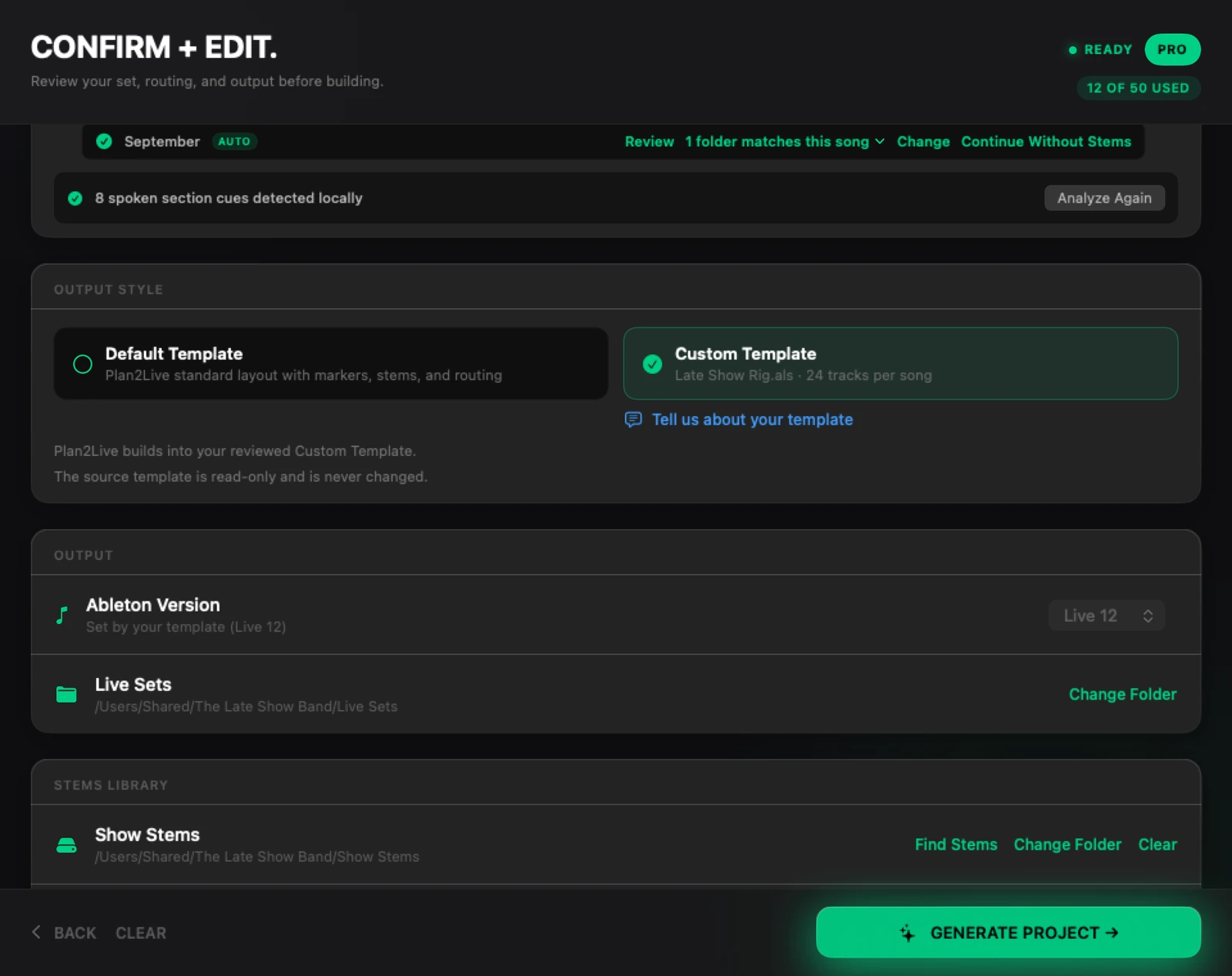
Already have a rig: your own Ableton template with your tracks, groups, colours and routing? With Custom Templates, Plan2Live builds the new set into it, in Arrangement View, and puts each song's stems on your own tracks.
Custom Templates are in beta and open on every plan. It has been tested on a limited set of rigs so far, so try it with your rig well before a show.
What your template needs#
- An Ableton Live 12 set whose songs sit on the timeline (Arrangement View). A template built around Session View scenes is refused, and nothing is changed.
- Its own media, in its project folder. Plan2Live reads your lanes, colours and routing from a real set, so use one with audio in it, like last week's set. An empty template, or one whose audio has been moved away, leaves it nothing to read. If the audio lives outside the project folder, open the set in Ableton, use File → Collect All and Save, then choose it again.
- On this Mac. If the set lives in iCloud, Dropbox or OneDrive, download it to the Mac first.
- Not too big: the
.alsfile can be up to 64 MB.
Pick your template#
- On Confirm + Edit, in the Output Style card, click Custom Template.
- The first time, a note explains the beta. Press Choose Template Folder.
- Choose your Ableton project folder: the one that holds the
.alsand its audio. Nothing in it is changed. - If the folder holds more than one set, pick the one to build from and press Use This Set. If it holds none, Plan2Live looks nearby and suggests one ("Did you mean …?").
Plan2Live then reviews the template ("Reviewing …"). When it's done, the tile shows the template's name and how many tracks each song gets, and the Ableton Version menu says "Set by your template".
What the review tells you#
The review explains what Plan2Live found and what it will do. For example:
- Song slots. If your template has a group for each song, Plan2Live fills them in your set's order. If your set has more songs than the template has slots, it adds slots by copying your first one, and it removes empty slots left over. Each time, it tells you. If it can't see your song groups, it says how to name them.
- Lanes it leaves alone. Buses, Monitor In lanes and other pass-through lanes are recognized and left untouched, and the review lists them under LEFT UNTOUCHED IN YOUR TEMPLATE.
- Click and Guide. For each song it says where the Click and Guide went, or why one couldn't go somewhere (for example, if the only fitting lane is a Monitor In lane).
- Missing lanes. If your template has no lane for some of your stems, Plan2Live offers Add Plan2Live Stem Lanes, or Use Plan2Live Default Layout for the whole set.
When a template can't be used#
Some templates can't be built into (yet). Then Plan2Live says why, names the file, and changes nothing. A few examples:
- "…is not an Ableton Live Set…": choose the
.als's project folder. - "…has no audio track Plan2Live can put the stems or the guide on…": the template needs at least one audio track.
- "…opened as an Ableton Live Set, but Plan2Live cannot build into its layout yet…": build this set with the default template, and tell us about your template.
- "…has parts Plan2Live cannot rebuild safely on its own…": contact Plan2Live support and we'll look at the template with you.
If the build into your template fails, Plan2Live can build the same songs into its default template instead, so you still get a set, and the finished card says so. There's also a Use the Default Template button on a failed build. Your template file isn't changed; choose it again under Output Style to try it next time.
How long the beta lasts#
Custom Templates are open on every plan, Free included, for as long as they're in beta. The beta has no end date.
Tell us about your template#
The Tell us about your template sheet sends us your message and the shape Plan2Live measured (track and group counts, what it found). It never sends your lane names, your file name or the template itself. It goes out with usage analytics, so if you've turned those off, e-mail feedback@plan2liveapp.com instead.
Something here doesn't match what you see in the app? Email feedback@plan2liveapp.com.