Chapter 12
Settings and your account
Every section of the Settings window, and what each one does.
Open Settings with ⌘, (Command-comma) or the Settings button in the toolbar.
Account & Billing#
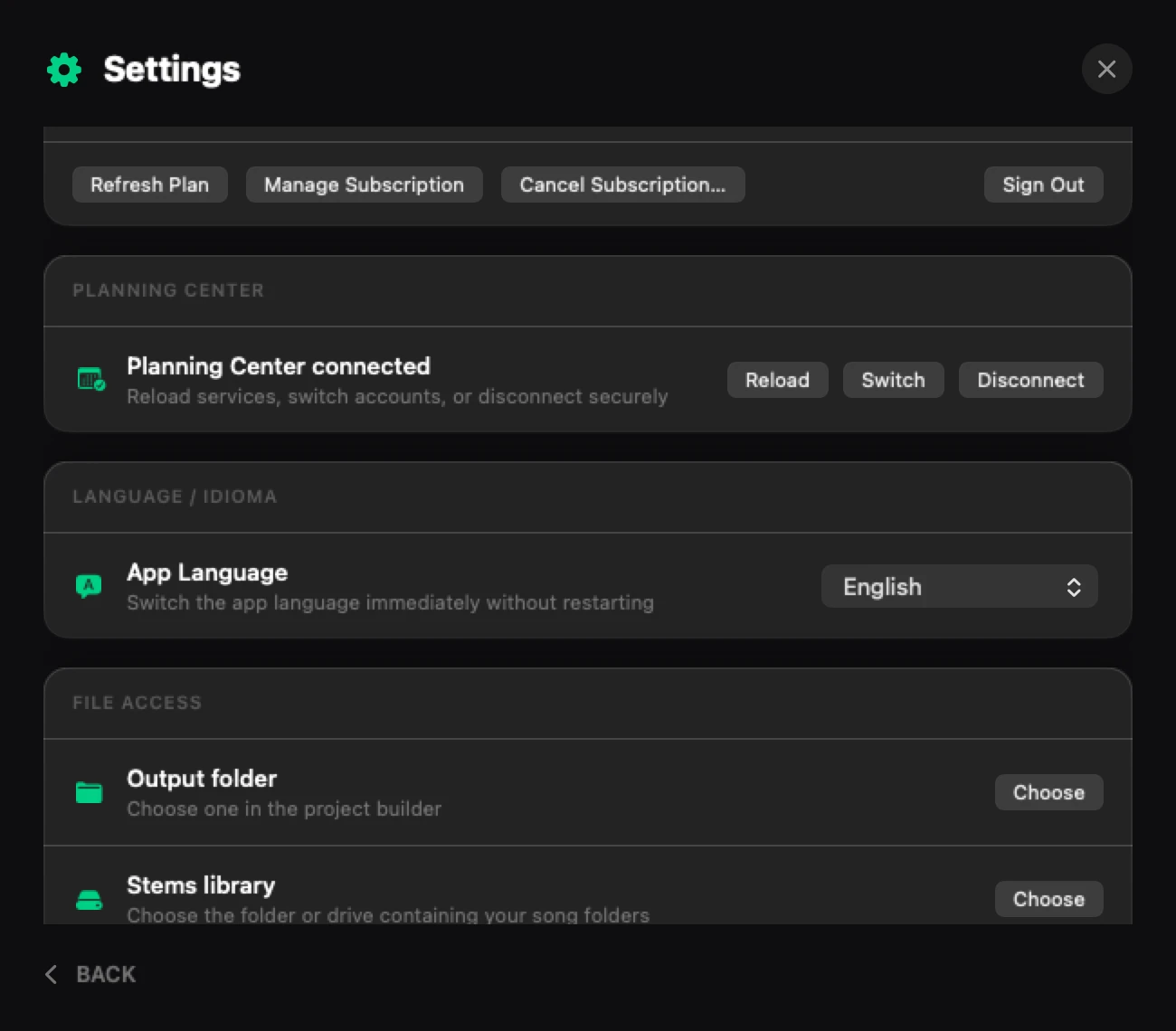
Your name and e-mail, your plan, and how many builds you've used ("38 remaining · 12 of 50 used"). It also shows what your plan includes: Planning Center, Project History and Custom Templates.
- Refresh Plan checks your plan again (after you upgrade on the website, for example).
- Upgrade → (on Free) opens the plan picker. From version 2.8.4, its Plus and Pro cards open on Yearly, and Premium's says Coming later. See Plans and billing.
- Manage Subscription (when you pay for a plan through Stripe) opens Stripe's billing page in your browser, where you can update your card.
- Cancel Subscription… (the same) opens Stripe's page for cancelling your subscription.
- Sign Out signs you out of the app.
Planning Center#
Shows whether Planning Center is connected, or, if something went wrong, what it was (from version 2.8.3, for example "Check your Planning Center credentials" or "Planning Center asked Plan2Live to wait"). Reload loads your plans from Planning Center again, Switch connects a different Planning Center account, and Disconnect removes the connection from this Mac. See Importing from Planning Center.
Language / Idioma#
App Language switches the app between English and Español (or follows your Mac with System / Sistema), right away, without restarting.
From version 2.8.3, the whole app follows it: its screens, windows and messages, including the sign-in and Create account screen, Settings, the plan picker and the guided tour. (In version 2.8.2, some windows, like Settings and the plan picker, stayed in your Mac's language.) The language your Guide tracks are spoken in is a separate choice: see Pick the Guide's language.
File Access#
- Output folder: where finished sets are saved. See Output folder and Ableton version.
- Stems library: the folder or drive with your song folders, with Find Stems, Choose / Change and Clear.
- Additional stems libraries: more folders to search, with Add Library and Remove. See Your Stems Library.
Help#
- Getting Started plays the introduction again.
- Run Setup Wizard goes through the setup again.
- Privacy & Terms opens the Privacy Policy and the Terms on plan2liveapp.com.
Privacy & Diagnostics#
Share usage analytics is on unless you turn it off. It lets the app send us which features you use and whether each build worked. See Privacy and permissions.
Plan2Live Status#
Shows whether the app is ready, the Ableton Version menu (the same one as on Confirm + Edit), and "Project building: On this Mac": every set is built on your own Mac.
Something here doesn't match what you see in the app? Email feedback@plan2liveapp.com.