Chapter 6
Guide analysis and section markers
Plan2Live listens to each song's Guide track on your Mac and names the section markers after the cues it hears.
Many Guide tracks have a voice that calls out the sections: "intro", "verse one", "chorus", "bridge". Plan2Live listens for those cues and puts a named section marker where each one starts, so the set is easy to find your way around the moment you open it.
How it works#
- As soon as a song's stems folder is found and it has a Guide file, Plan2Live starts reading the Guide. You can also press Analyze Guide on the song's row, or Analyze Again to read it once more.
- The Guide is read on your Mac. The audio isn't uploaded anywhere, and no microphone is used.
- While it reads, the row says "Reading Guide cues locally. Generate unlocks when this Guide is ready." GENERATE waits until every Guide is done.
- Guides are read one at a time. From version 2.8.3, a set with many Guides (long medleys, say) shows where each one is: a waiting row says how many Guides are ahead of it ("Guide analysis is queued: 3 Guides are ahead of this one."), the Guide being read counts its spoken parts as it goes ("Reading Guide cues locally: 4 of 9 spoken parts read.") with a filling circle, and the GENERATE button counts the Guides that are ready, for example ANALYZING GUIDES… 3 OF 12 READY.
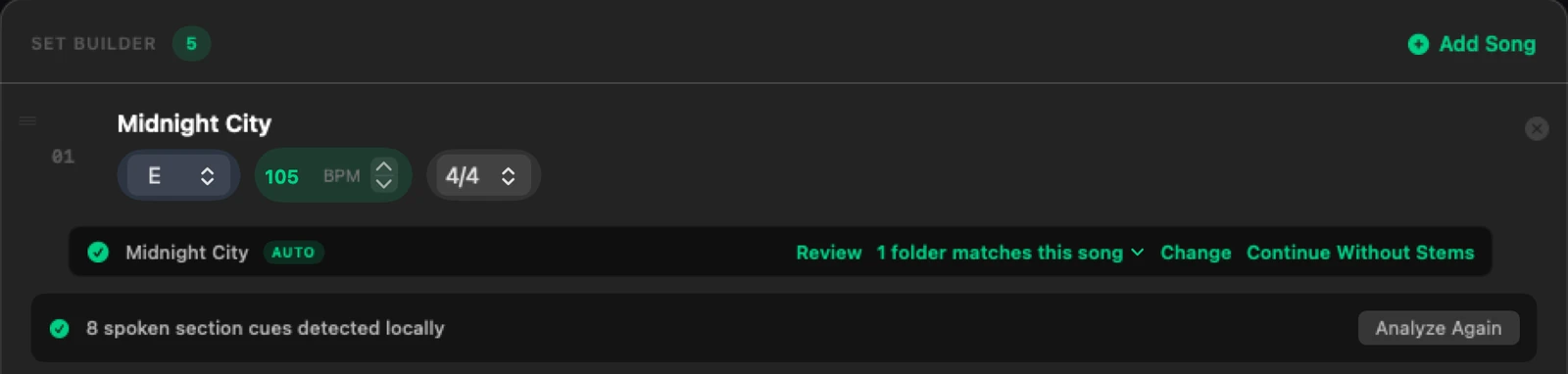
- When it's done, the row says how many cues it heard, for example "8 spoken section cues detected locally".
Guide reading has been tested on Apple Silicon Macs.
Pick the Guide's language#
In the Options card, set Guide Language to the language spoken on your Guide tracks: English, Español or Português. If your song titles look Spanish, Plan2Live offers to read the Guides in Spanish.
What the markers are called#
Plan2Live knows the usual section words, like Intro, Verse (and Verse 1, Verse 2…), Pre-Chorus, Chorus, Post-Chorus, Bridge, Refrain, Tag, Vamp, Turnaround, Interlude, Instrumental, Breakdown, Outro and Ending. A COUNT marker always sits at the very start, and if there's music before the first spoken cue, Plan2Live adds an INTRO there.
When there are no spoken names#
- The Guide has timing but no names it recognizes: the sections follow the Guide, and they're numbered. The row says "No spoken section names were recognized, so sections are numbered."
- The song has no Guide at all: its sections are spaced evenly, and its Guide track stays empty.
- Placeholder markers: a song without spoken cues can get the placeholder markers COUNT, SECTION 1 and ENDING. The finished card lists those songs.
Either way, you can rename any marker in Live. Or add a Guide with spoken cues and build again.
If a Guide can't be read#
The row explains what went wrong and offers a way on:
- Try Again reads it again.
- Build Without This Guide builds the song from its own structure. The Guide audio is still copied onto the Guide track; only the timing from it is set aside. Use This Guide Again undoes that.
- A silent Guide (Plan2Live can't hear anything in it) won't be different the second time, so there's no Try Again. Pick a different Guide file, or build without it.
- A very long Guide (a long medley, say) can be too long to read. The message tells you the longest it can take for that file: export a shorter Guide, or build without it.
From version 2.8.3, a silent or too-long Guide offers Choose Song Folder (to pick the song's folder again once a different Guide is in it) and Build Without This Guide. A too-long Guide no longer offers a Try Again that would only stop the same way.
Marker styles#
The Markers menu in the Options card sets how sections are written into the set:
| Choice | What you get |
|---|---|
| Regular (the default) | One locator at the start of each section. |
| AbleSet Locators | A locator with the song's title, one for each section, and a SONG END locator. For people who run their sets with AbleSet. |
| AbleSet Sections | A locator with the song's title, and the sections as clips on a Sections track. |
| Off | No Guide reading and no section markers. |
Planning Center section names#
For a set imported from Planning Center, you can take the section names from Planning Center instead of the Guide. See Section names: Guide or Planning Center.
Something here doesn't match what you see in the app? Email feedback@plan2liveapp.com.