Chapter 4
Importing from Planning Center
Connect Planning Center once, pick a plan, and the whole set comes in with each song's key, tempo, time signature and sections.
If your team plans its services or shows in Planning Center, Plan2Live can bring the whole set in at once: the songs in order, each with its key, tempo and time signature when Planning Center has them, and the song's sections from its arrangement.
Planning Center is optional. If you don't use it, type your setlist instead.
Connect Planning Center#
Plan2Live connects with a Planning Center Personal Access Token. You make one in Planning Center and paste two codes into Plan2Live. You only do this once.
- In your web browser, go to
api.planningcenteronline.com/oauth/applicationsand sign in with your Planning Center account. - Click New Personal Access Token and name it "Plan2Live".
- Copy the App ID and the Secret it shows you.
- In Plan2Live, paste them into PLANNING CENTER APP ID and PLANNING CENTER SECRET, then press Connect Planning Center →. (In the Setup Wizard, the fields are called APPLICATION ID and SECRET, and the button is Connect & Continue →.)
You can reconnect, switch to another Planning Center account, or disconnect any time in Settings → Planning Center (Reload, Switch, Disconnect).
Pick a plan#
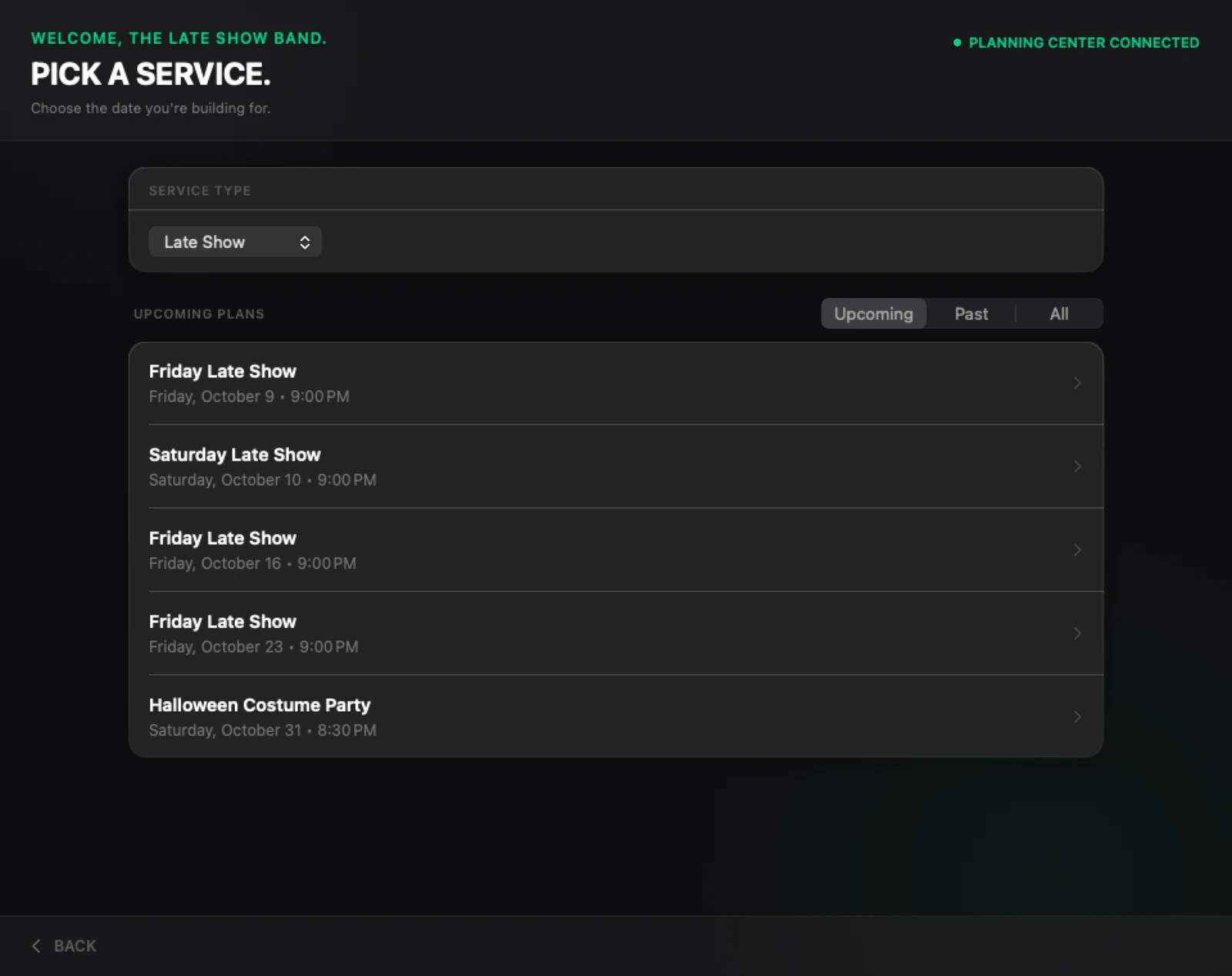
Choose Planning Center on the New Project screen. The PICK A SETLIST. screen opens (in version 2.8.2 it was called PICK A SERVICE.).
- Choose the Service Type you want.
- Choose Upcoming, Past or All, and use Previous and Next to page through the plans.
- Click the plan you're building for. Plan2Live imports it and opens Confirm + Edit.
What comes in#
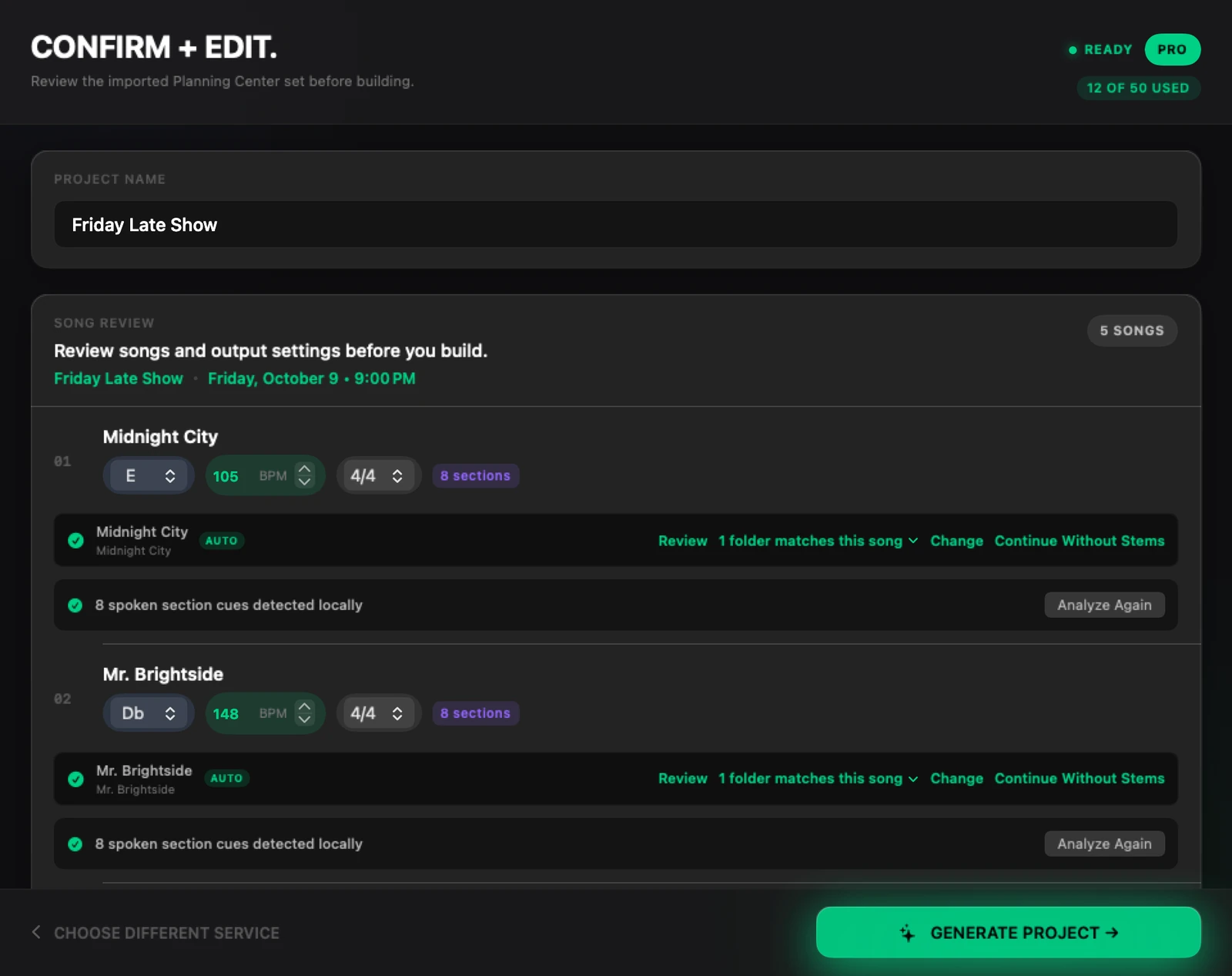
For each song in the plan, Plan2Live brings in:
- the title;
- the key, when the song's key is set in the plan;
- the tempo, from the arrangement's BPM (or a tempo like "128 bpm" written in the item's notes);
- the time signature, from the arrangement's meter, when it's 4/4, 3/4 or 6/8;
- the sections, from the arrangement's sequence (shown as a purple "8 sections" pill on the song's row).
Items that aren't songs (a welcome, a reading, announcements) are left out. A plan can bring in up to 50 songs. The project is named after the plan, and you can change the name.
If something is missing#
If Planning Center didn't have a key, tempo or time signature for a song (or it had a time signature Plan2Live can't build), that box comes in empty and highlighted, and the GENERATE button tells you what's missing, for example 1 SONG NEEDS A TEMPO ↑. Fill it in on the song's row.
You can change any song's key, tempo and time signature on Confirm + Edit. The song list itself (which songs, in which order) comes from the plan: to change it, change the plan in Planning Center, then press BACK TO PLANNING CENTER at the bottom of Confirm + Edit (in version 2.8.2, CHOOSE DIFFERENT SERVICE) and import it again.
Section names: Guide or Planning Center#
For an imported plan, the Options card has a Guide Analysis Labels row. Choose where the section markers get their names:
- Guide Analysis Labels (the default): from the spoken cues on each song's Guide track. See Guide analysis and section markers.
- Planning Center Labels: from the song's arrangement sections in Planning Center.
If no songs come in#
If a plan has no songs, Plan2Live says "This Planning Center plan has no song items to import." Check that the songs are added to the plan as songs in Planning Center, not as other items.
Something here doesn't match what you see in the app? Email feedback@plan2liveapp.com.