Chapter 5
Stems: folders and matching
Where to keep your stems, how Plan2Live finds each song's folder, how it puts each file on a track, and what to do when it asks you.
Plan2Live doesn't supply stems. It reads the stems you already have on your Mac (or on a drive), finds the right folder for each song in your set, and copies that song's stems into the new Ableton set, each on its own track.
Your Stems Library#
Your Stems Library is the folder (or whole drive) that holds your song folders. You choose it in the Setup Wizard, in the Stems Library card on Confirm + Edit (Choose Folder / Change Folder), or in Settings → File Access → Stems library. Plan2Live remembers it.
Keep songs in more than one place? Add them in Settings → File Access → Additional stems libraries with Add Library. Plan2Live searches all of them.
When the songs are in, Plan2Live searches your libraries on its own. You can search again any time with Find Stems.
Folder names#
Use one folder per song, named after the song. Song Title - Key - BPM works best, but only the title is needed.
- The title is what the app matches, so spell it the way it's spelled in your setlist. Upper or lower case and accents don't matter.
- The key and BPM are optional. They help the app pick the right folder when you keep the same song in more than one folder (for example, in two keys) and your set gives the song a key or tempo.
- Parentheses and brackets are fine. The app ignores what's inside them when it matches the title, and it reads a key written there, like
(Key of G)or[A]. - A track number at the start (
01 -) and words like "stems" or "multitracks" at the end are ignored too. - If the app isn't sure which folder belongs to a song, it asks you.
Good folder names:
Firm Foundation - G - 98bpm01 - Firm Foundation - G - 98bpmFirm Foundation (Key of G)Firm Foundation [G] 98bpmKing of Kings - B - 72bpm
Things that make the app ask you, or miss the song:
- Spelling the title very differently from your setlist.
- Keeping the same song in two folders with no key in either name. The app can't tell them apart, so it asks you which one to use.
- Putting every song's stems together in one folder, instead of one folder per song.
When Plan2Live asks you#
Each song's row on Confirm + Edit says what Plan2Live found:
- The folder's name, with AUTO: it found the folder by itself.
- "2 folders match this song": press Review Matches and pick the right one. Each folder shows how closely it matches.
- "Plan2Live couldn’t match this folder automatically.": press Choose Folder or Drive and pick the song's folder yourself, or press Continue Without Stems to build the set without that song's stems (the finished card then lists it under Songs left out).
When you pick a folder, Plan2Live remembers it on this Mac and uses it again next time ("Using your earlier choice"), as long as the song and the folders are the same. Press change to pick another.
How files become tracks#
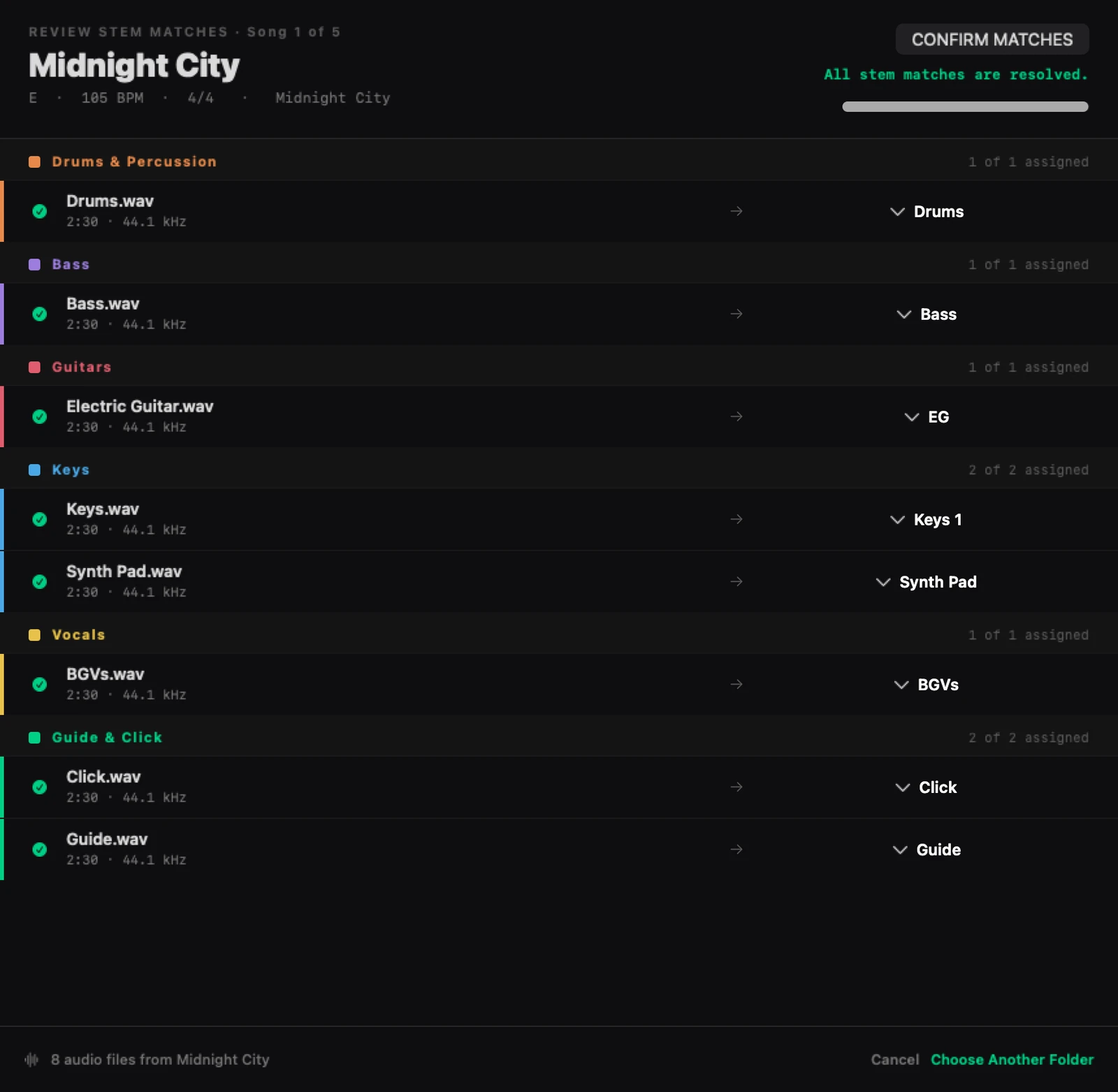
Plan2Live reads WAV, AIFF, FLAC, MP3, M4A and CAF files. It puts each one on a track by its file name:
| File names like | Go on the track |
|---|---|
| Drums, Kit | Drums |
| Perc, Percussion, Shaker, Tambourine | Perc |
| Loop, Drum Loop, Beat | Loop |
| Bass | Bass |
| Synth Bass, Sub | Synth Bass |
| EG1, Electric 1, Guitar 1 | EG 1, EG 2… |
| Keys 1, Synth 1, Pad 1 | Keys 1, Keys 2… |
| Piano, Rhodes, Wurlitzer | Piano |
| Organ, B3, Hammond | Organ |
| FX, SFX | Synth FX |
| BGV, BV, Harmony, Backing Vocals | BGVs |
| Click, Click Track, Metronome | Click |
| Guide, Cues, Guide Vocal | Guide |
Spanish and Portuguese names work too (for example Batería, Guitarra Eléctrica, Teclado, Coros, Guía, Claqueta).
A stem that doesn't fit any of these gets its own new track, named after the file. Stem tracks a song doesn't use are left out of that song, so each song only has the tracks it needs. The Click and Guide tracks always stay.
Review Stem Matches#
If a file could go on more than one track, or its name is unclear (for example "Drums & Percussion", or "No Drums"), Plan2Live asks. Press Review on the song's row: REVIEW STEM MATCHES shows every file and the track it goes on. For each file marked Needs a track, choose a track, Create new track, or Skip this stem.
Stems in another key#
If the stems folder's name has a key (like Firm Foundation - A - 98bpm) and the song in your set is in a different key, Plan2Live transposes the stems to the set's key. It moves them the shortest way, up to 6 semitones up or down, and the song's row says so (for example: the folder is in A, the song is set to G, so the stems move down 2 semitones). For a jump of 4 semitones or more it adds that the stems may sound thin.
Drums, percussion, loops, the click and the Guide are never transposed. The finished card lists what moved and how far.
Very large libraries#
Plan2Live searches several folder levels deep. If a library is very big, it stops early and tells you so: move your song folders higher up, or add a more specific folder as your library.
If you pick a folder for one song that is really a whole library or drive (more than 128 folders, or more than 128 audio files), Plan2Live says so and asks you for the song's own folder. From version 2.8.3 it tells you much sooner, even for a folder with many thousands of files.
Include stems#
The Include stems switch in the Options card is on unless you turn it off. Turned off, Plan2Live builds the songs with their tempos and section markers, but no audio.
Something here doesn't match what you see in the app? Email feedback@plan2liveapp.com.