Chapter 10
Building the set
Check every song on Confirm + Edit, press GENERATE PROJECT, and read the finished card.
Check everything on Confirm + Edit#
CONFIRM + EDIT. is where you look over the whole set before you build. From top to bottom:
- Project Name: what the set will be called.
- Set Builder (typed set) or Song Review (Planning Center): every song with its key, tempo and time signature, its stems folder, and its Guide.
- Output Style: the built-in template, or your Custom Template.
- Output: the Ableton version and the output folder.
- Stems Library: where Plan2Live looks for your stems.
- Options: Include stems, the Guide language and the marker style, and for a Planning Center set, where section names come from.
The GENERATE button tells you what's left#
The big button at the bottom says what to do next. When it reads GENERATE PROJECT →, the set is ready to build. Until then, it names the next thing to fix, for example:
| The button says | What to do |
|---|---|
| NAME YOUR PROJECT → | Type a name in Project Name. |
| ADD SONGS ABOVE → | Add at least one song. |
| 1 SONG NEEDS A TEMPO ↑ (or a key, or a time signature) | Fill it in on the highlighted song. |
| 1 SONG NEEDS A STEM DECISION → | Pick the song's folder, or choose Continue Without Stems. |
| REVIEW MATCHES → | Choose between the folders that match a song. |
| ANALYZING GUIDE… (from version 2.8.3, with several Guides, ANALYZING GUIDES… 3 OF 12 READY) | Wait: Plan2Live is reading the Guides. |
| 1 GUIDE COULD NOT BE READ ↑ | See If a Guide can't be read. |
| CHOOSE OUTPUT FOLDER → | Choose where to save the set. |
| SIGN IN TO CONTINUE → | Sign in to your Plan2Live account. |
| VIEW GENERATION OPTIONS → | You've used the builds your plan includes. See Plans and billing. |
| REVIEW YOUR PLAN → | Your plan needs a look: open your account. |
Build#
Press GENERATE PROJECT →. The BUILDING. screen shows each step: finding your stems, laying out the set and its section markers, building the Ableton project, writing the project file and finishing the session. (The Guides were already read on Confirm + Edit.)
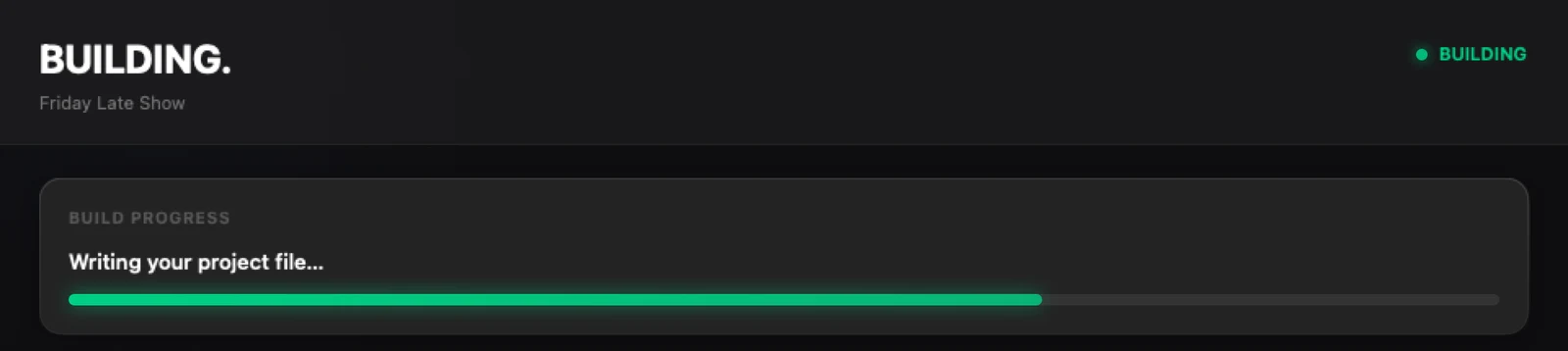
Changed your mind? Press CANCEL. A canceled build isn't saved to your output folder, and TRY AGAIN starts it again.
A set with very little audio#
From version 2.8.4, on the Free plan, Plan2Live asks before it builds a set with very little audio in it: fewer than 3 music stems in the whole set, or only a click or a Guide. The question is This set has very little audio, and it says how many music stems would go in, for example "Only 1 music stem would go into this set. Building it uses one of your free builds. Check the stems folders first, or build anyway."
- Check Stems Folders takes you to the song with the fewest music stems, so you can pick its folder or its stems again.
- Build Anyway builds the set as it is. It doesn't ask again for the same files.
- Cancel goes back to Confirm + Edit.
Asking doesn't use a build: only a set that is built does. On a paid plan, or with Include stems turned off, Plan2Live doesn't ask.
The finished card#
When the set is ready, the screen says DONE. and the card says PROJECT READY, "Saved safely to your selected output folder." It shows how many songs and stems went in.
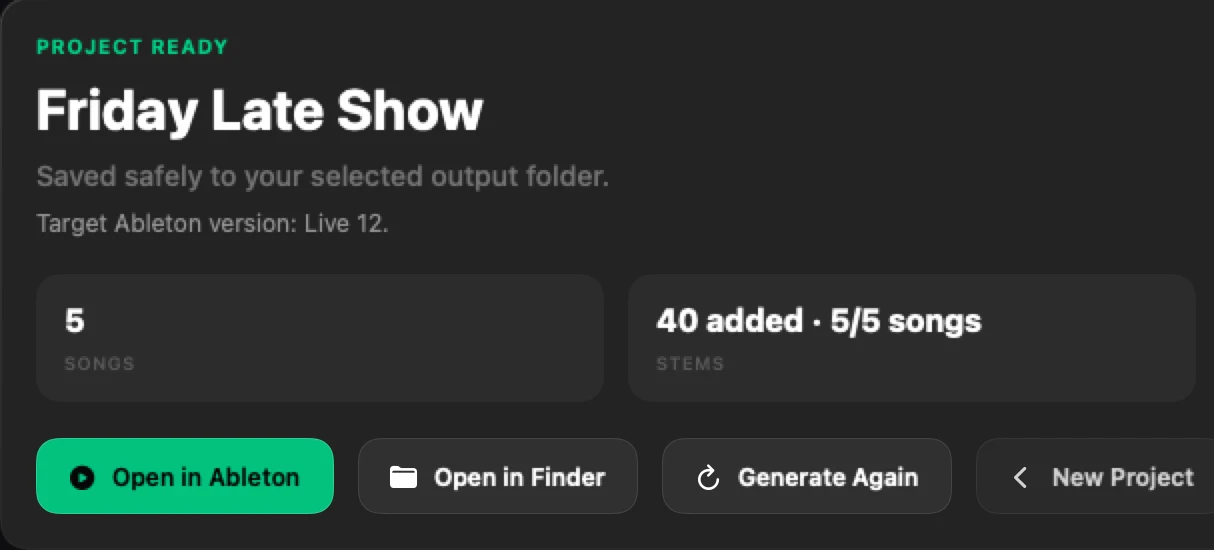
- Open in Ableton opens the set in Ableton Live. See Opening the set in Ableton Live.
- Open in Finder shows the project folder.
- Generate Again takes you back to the same project, to change something and build again.
- New Project starts a new set.
From version 2.8.3, the card on the Free plan also says where your free builds stand, once our server has counted the build:
- "You have 1 free build left." with Build Your Next Set, which starts a new project.
- When that was your last one: "You've used your 2 free builds.", what Plus gives you and its price from the plan list, and See Plans.
From version 2.8.4, when that was your last free build, the card lets you choose right there: "Choose a plan to keep building. Checkout opens in your browser." Plus and Pro sit side by side, each with its builds a month and its price from the plan list, shown Yearly first (switch to Monthly if you'd rather). Each has its own button, like Start Plus Yearly →, that opens that plan's Stripe checkout in your browser. See Plans is still there and opens the whole plan list. If the app couldn't load the plan list, See Plans is the card's only button.
When you're signed in, the card can also show your invite link to send to a friend, with Copy Link (or Open Account Page when the app can't read it). See Plans and billing.
Sometimes the card has a different label, with the details underneath:
- GENERATED WITH WARNINGS: the set was built, but something needs a look (read the notes on the card).
- SONGS LEFT OUT: some songs' stems didn't make it into the set, for example because no folder was found for them, or you chose Continue Without Stems. The card says how many made it ("Built 4 of 5 songs."), names each song left out, says why, and what to do.
- NO SONG AUDIO: the set was built with no stems at all.
The card also lists songs whose markers are placeholders, and any stems that were transposed.
If a build stops#
If something stops the build, the screen says FAILED. (or STEMS NOT FOUND.), and the card says what happened and what to do. The button on the right does the next step for you, for example Choose Another Output Folder, Free Up Space on This Mac, CHOOSE STEMS LIBRARY, Reconnect Planning Center or TRY AGAIN. RETURN TO PROJECT takes you back with everything as it was.
A build that fails, or is stopped before it starts, doesn't use up one of your builds. Only finished sets count.
Build Details#
Open BUILD DETAILS on the card to see the output path, what the final check found, and an activity log. Open Diagnostics in Finder shows a small troubleshooting package saved on your Mac, which you can send to support. It holds build status and error codes only: never audio, file names, folder paths or transcripts. See Getting help.
For the common messages one by one, see Troubleshooting.
Something here doesn't match what you see in the app? Email feedback@plan2liveapp.com.